Installing Custom Plugin Presets into VST/AU versions of MPC plugins
If you have the VST/AU version of any MPC plugin, such as Fabric XL, Jura and Mini D, it’s possible to install third party presets, such as our ‘Crush’ Fabric Preset Library directly inside so they appear alongside the factory presets when browsing via the main plugin UI.
There are two different installation options. Before performing either installation, you should close any DAW that may be using instances of that plugin .
Option 1: VST/AU Plugin User Folder Install
The ‘User Folder’ install option will put the presets inside the ‘ User’ presets group of the VST/AU plugin.
Advantages: No admin permissions required. Software updates to the plugin itself will not overwrite your custom presets
Disadvantage: The User preset folder does not support organising presets into ‘groups’ (bass, pads, keys etc).
The first thing to note is that if you have already separately installed custom presets inside the native MPC Software version of your plugin, then there is no need to also install inside the VST/AU version, as the native MPC Presets will be automatically mapped to the VST/AU version as well.
In this example we’ll be installing Fabric XL presets from our own Crush library.
Download Crush from your File Bank, unzip and locate the VST/AU Plugin Install’ folder.

Open the ‘ User Folder Installation’ folder and copy the folder ‘[Pad Pimps] Crush - Fabric XL Presets’ to the following location:
PC: C:/Users/
Mac: /Users/

For other MPC plugins, simply copy your custom presets to the folder named after your targeted plugin (e.g. ‘AIR Music Technology – MPC – Jura’).
If you have previously saved your own user presets from within the plugin, the above locations will already exist. Otherwise you’ll have to create it (make sure you spell everything exactly as shown), but the easiest option is to simply open the plugin itself and just quickly re-save the default preset to your ‘User’ folder; this way the plugin creates this ‘User folder’ path for you.
After copying the presets, re-launch your DAW, open the plugin UI and navigate to the User preset group:

As mentioned at the start of this section, the disadvantage of this installation option is that it does not support organising the presets into sub-groups (bass, lead, pads etc). To workaround this limitation, we rename our ‘User folder’ presets to account for this (e.g. ‘[Pads] Crush Faded Bell’).
If you’d prefer to have your presets organised into proper sub groups , you can use the ‘System Folder’ install described next.
System Folder Installation (Advanced)
If you would like the presets to appear in their own category with proper sub group organisation, we must use what we call a ‘System Folder’ installation.
- Advantage: Presets are organised into groups, just like the factory presets are (e.g. bass, keys, lead etc), for a sleeker integration.
- Disadvantage: Admin permissions may be required for installation. If the plugin itself ever receives a software update from Akai it’s possible that you may have to re-install any of the presets you copied here
Again, we’ll use our Crush Fabric XL library as the example. Locate the VST/AU Plugin Install folder and open the ‘System Folder Installation (Advanced)’ folder.

Copy the ‘[Pad Pimps] Crush - Fabric XL Presets’ folder here:
Mac: /Library/Application Support/Akai/Synths/AIR Music Technology - MPC - Fabric XL/Presets
PC: C:/Program Files/Akai Pro/Synths/AIR Music Technology - MPC – Fabric XL/Presets
These preset paths will already exist, but you are likely to need admin permissions to paste folders to these locations. Remember to replace ‘Fabric XL’ with the name of the plugin whose presets you are installing (e.g. ‘Jura’, ‘Mini D’ etc).
Re-launch your host DAW application for the presets to appear within the plugin. Now open the plugin UI and locate the preset group called ‘[Pad Pimps] Crush’ :

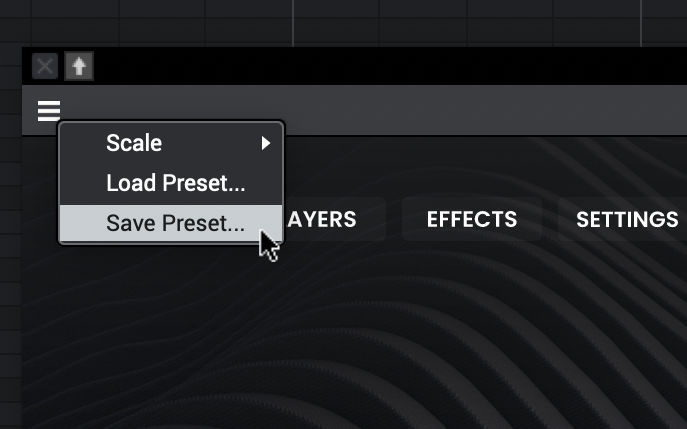
Don’t forget, if you customise any of these presets you can of course re-save the customised versions to your ‘User’ group, just like you can with the factory presets. you can also re-save any of these presets. Simply use the ‘ Save Presets’ option from the plugin UI:
If you have any problems installing your preset expansion, please get in touch and we’ll guide you through the process.


